Describe the outcome on the Dashboard, then use a Designer node in Flowgen or one of its eight empty-canvas starts. Create a standalone Designer project only when you need an independent workspace.
Where: Dashboard → “What would you like to make?” → Flowgen; or New flowgen project → empty canvas.
Before you start
- You need permission to create a project in the current workspace. Paid generation still checks your plan and Sparks when the work runs.
Key ideas
- Flowgen is the normal starting workspace: Describe a design goal in the guided Dashboard prompt or a new Flowgen canvas. The Agent can place a Designer node, an empty-canvas visual start can prepare one, and Marketplace can supply a reusable flow.
- Standalone Designer is a secondary path: The New project chevron can create a blank Designer project with its own Dashboard identity and lifecycle. Use it for independent direct authoring or when a node-backed design is deliberately promoted.
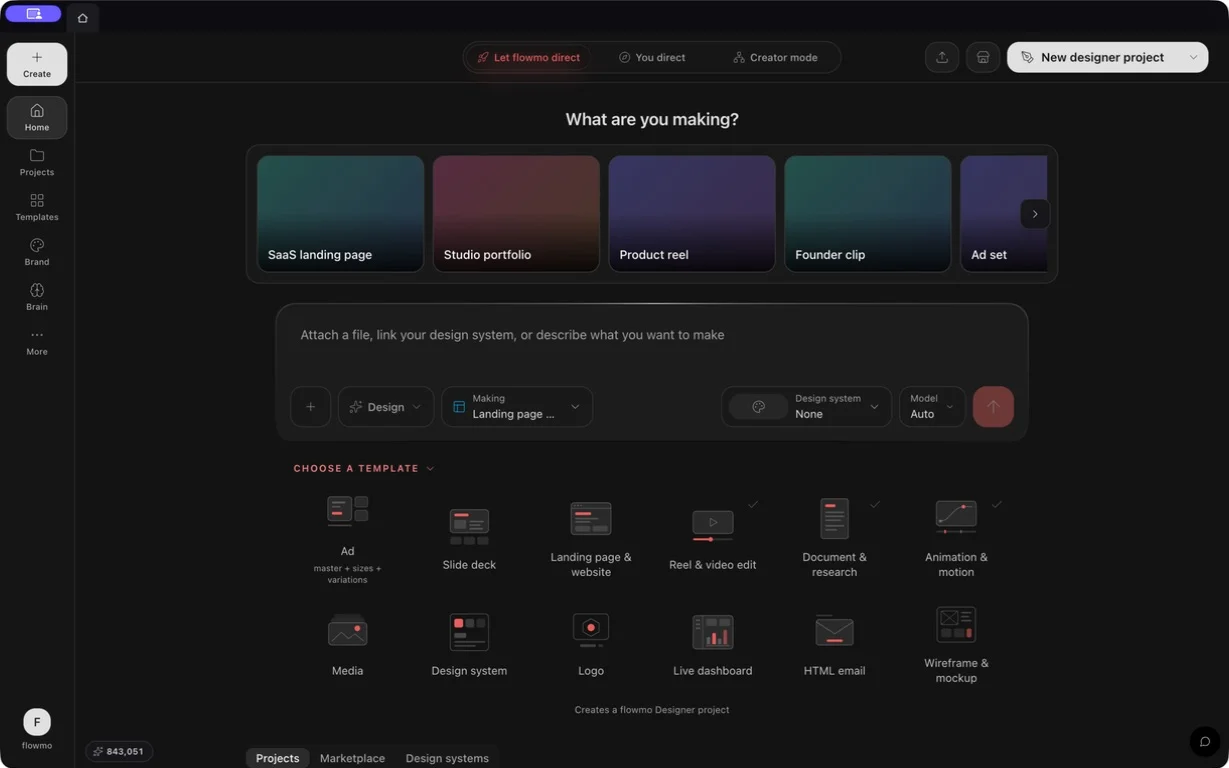
- Type and shape are separate choices: Designer has twelve visible page types. Video, Ad, and Media also accept an aspect preset; responsive document types instead open at a device width.
- The first-turn handoff is explicit: Confirm the chosen Designer page type, brief, references, Brand/Brain context, design system, media kind, and aspect before a paid build. An empty Flowgen canvas or blank standalone project does not itself run generation.
Steps
- Start on the Dashboard with “What would you like to make?” and describe the intended design. Add useful references and choose or skip a Brand, then continue into Flowgen.
- On a new empty Flowgen canvas, use Build with AI for chat, choose a matching visual start among the eight cards, or use Start from a flow to browse Marketplace work.
- If the current flow needs a design stage, add or open its Designer node; keep the design connected to its upstream brief and downstream output.
- Pick the Designer page type for the deliverable: Landing page & website, Reel & video edit, Ad, Slide deck, Animation & motion, Document & research, Wireframe & mockup, HTML email, Live dashboard, Logo, Media, or Design system.
- For Video, Ad, or Media, check Landscape 16:9, Portrait 9:16, Square 1:1, or Portrait 4:5. For responsive work, test the intended device widths.
- Review the brief, files, Brain/Brand context, design system, and Designer assistant mode before starting a paid build.
- Use the New project chevron → Designer only when you deliberately need a separate blank Designer project. Open its chat and choose a page type there; it has its own Dashboard card.
- After the first build, verify page type, aspect/device, design system, assets, and the exact rendered target before expanding the project.
Flowgen start choices
- Build with AI opens the Agent conversation.
- The eight visual starts are Slide deck, Ad, Brand images, Immersive webpage, Studio portraits, Animation & motion, Reel & video edit, and Design system.
- Start from a flow opens Marketplace. Review its listing before using or buying it.
- These are editable Flowgen starting points, not Dashboard account modes.
Designer decisions after the start
- Choose the exact page type and, where relevant, the Media kind: Image, Video, Music, Voice, or Sound effect.
- Choose the aspect or responsive width appropriate to the delivery target.
- Keep project Brand, Brain, files, and design-system references explicit so the assistant uses the right source.
- A standalone Designer project is available from the secondary New project menu and can also be linked or promoted where supported.
Tips
- Start with one representative page or placement, approve the visual system, then add variants.
- Promote or create a standalone project only when independent sharing or a separate Dashboard lifecycle is needed.
Limitations and important notes
- A selected model or design system can be remembered in this browser without becoming an immutable project setting.
- A linked Designer document and Flowgen node do not automatically mirror every later edit.
Troubleshooting
The new project opened in Flowgen.
That is the normal guided start. Open its Designer node to edit the design, or use the New project chevron → Designer when you specifically need a standalone project.
No AI build started.
A blank canvas or blank Designer project does not automatically generate. Open the Agent or Designer chat and review its quote before submitting work.