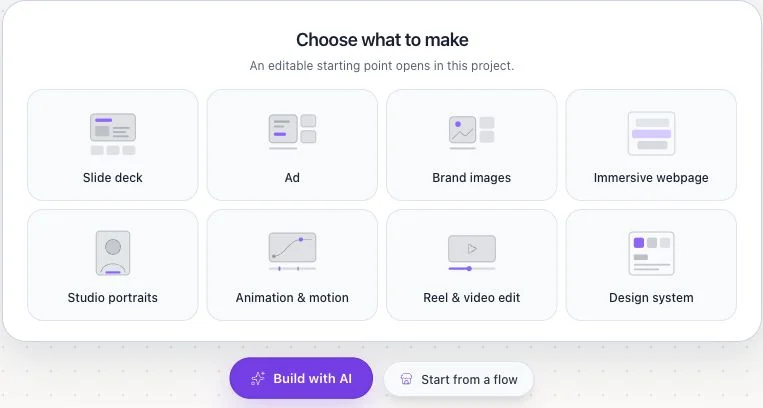
From a new Flowgen canvas, chat with Build with AI, choose one of eight visual starts, or use a Marketplace flow. Then inspect nodes, wire typed sources, and open the editor surface you need.
Where: Dashboard → create/open project → Flowgen canvas
Key ideas
- The empty canvas offers three starts: Build with AI opens the Agent conversation; “Choose what to make” offers eight editable outcomes; Start from a flow opens Marketplace browsing. All three lead into the same Flowgen project.
- A canvas holds nodes; a Flow is the connections between them: Projects can contain canvases. A Flow is a connected set of nodes and groups that passes typed values from sources through operations to editors or outputs.
- Card and node-graph views are two views of the same canvas: The Card mode control hides connections for a compact canvas. Switch back to the node graph to inspect and edit the wires. A node’s Show on canvas checkbox controls whether it appears on the simple canvas view; it does not remove the node or its connections.
- A noodle should land on the named field: Connect from an output socket to the exact destination field, or drag an output noodle onto that field. Keep prompts in connected Text source nodes and use the linked project Brand’s compatible field when the content already belongs to that Brand.
- Editor-backed nodes remain part of the flow: Website, video, and Designer editor surfaces can be opened from their node. Their editable documents and outputs remain tied to the graph instead of replacing the Flowgen project.
- Flow and Designer are presentations of the same canvas: Switching presentation changes how the canvas-owned work is shown; it does not change the project, graph, or connected sources. This is separate from opening a Designer node document.
Steps
- Start with the Dashboard’s “What would you like to make?” prompt for a guided brief, or choose New flowgen project to open a blank Flowgen canvas directly.
- On an empty canvas, select Build with AI to describe the job in chat, choose one of the eight “Choose what to make” presets, or select Start from a flow to browse Marketplace work.
- Review the prepared nodes and connections before running anything. Use Make for one direct output or the Agent conversation for a connected multi-step request.
- Use Add or Discover to place the source and operation nodes. Name important nodes by purpose, such as “Campaign brief” or “Product reference.”
- For prompt copy, use a connected Text source (the creation prompt helper creates that source connection). If the copy already exists in the project Brand, bind its exact compatible field instead of copying it into a prompt.
- In node-graph view, connect source outputs to the intended named input fields. You can start at a socket or drop the noodle directly onto the specific field. Confirm the field chip and the incoming connection before continuing.
- Use Card mode when you want to hide the graph connections and focus on node cards. Return to node-graph mode to inspect or edit noodles. Use Show on canvas on an individual node to include or hide it in the compact card view without deleting its flow role.
- Open a node’s editor from its Open editor action. Where the editor bar offers Detach editor, use it to move the editor into its floating window; Full screen editor returns it to the expanded editor surface. Close the editor to return to the canvas.
- For repeated rows, build an Items/List source → List Iterator → Results List path. Groups organize and expose reusable typed inputs/outputs; Group Repeater/loop Groups and Batch authoring are deprecated.
- Run a single node while testing. Use Run flow only after reviewing required inputs, routes, approval checkpoints, model/cost, and downstream writes.
- Use the presentation control to switch between Flow and Designer views without creating or converting a project.
- Open a Designer node only when you need its node-owned multi-page document; Designer presentation itself is not that document editor.
Before you run
- Check that every text prompt is represented by a connected Text source or the intended linked-Brand field.
- Check that each media input has the correct role: editing input, visual reference, first frame, last frame, audio, or asset placement.
- Review model, aspect ratio, duration, resolution, and quoted Flowie cost for paid operations.
- Creation and wiring do not themselves mean the user has approved a paid run or a write to a shared record.
Opening editor surfaces
- Select a supported node and use its Open editor action to enter the associated editor-backed surface.
- Use Detach editor to make the open editor a floating window when the toolbar offers it; use Full screen editor to return to the expanded surface.
- Close the editor when you are done. The saved node and its connections remain on the Flowgen canvas; editor-specific save/resolve controls determine whether local edits or newer upstream input wins.
Three Designer terms
- Designer presentation is a view over the Flowgen canvas.
- Designer node is an editor-backed document inside the graph.
- Designer page type is a kind of page inside that node-owned document.
Tips
- The eight cards appear only on a truly empty canvas; on an existing canvas use Add, Agent, or Marketplace without replacing the current flow.
- Use Card mode to scan card settings and results; use the graph view whenever you need to inspect provenance or debug wiring.
- Drop noodles on named fields rather than the body of a card; this disambiguates multi-input nodes and preserves the intended type.
- Keep flow-specific wording in a Text source and reusable identity rules in the linked Brand.
Limitations and important notes
- The exact fields and editor controls vary by node type.
- Hiding a node from the card view is not the same as deleting it or disabling its connections.
- Group Repeater and old Batch authoring are compatibility paths for existing canvases only.
Troubleshooting
I cannot see any connections.
Turn off Card mode to return to node-graph view; Card mode intentionally hides connections.
A node disappeared after I switched views.
Check its Show on canvas setting in the node controls. That hides the card in the compact view without deleting the node.
A connection landed on the wrong input.
Drag the noodle onto the exact named field or specify the destination handle explicitly, then inspect the field chip and graph connection.
Related guides
- Use f0 editors inside Flowgen nodes
- Run flows with routes and approval pauses
- Navigate the new Flowgen Make & Agent workspace
- Start from Blueprints, Flows & multiple canvases
- Three ways to start in Flowgen: chat, eight starts, or Marketplace
- Designer mode: the Flowgen canvas, typed documents, and legacy projects
- Getting started with Designer mode in Flowgen