Learn how to open the flowmo desktop harness, choose a creative starting point, and use its window, access, and model controls.
Before you start: Sign in to the flowmo desktop app. The harness must be included in your installed version and available to your account.
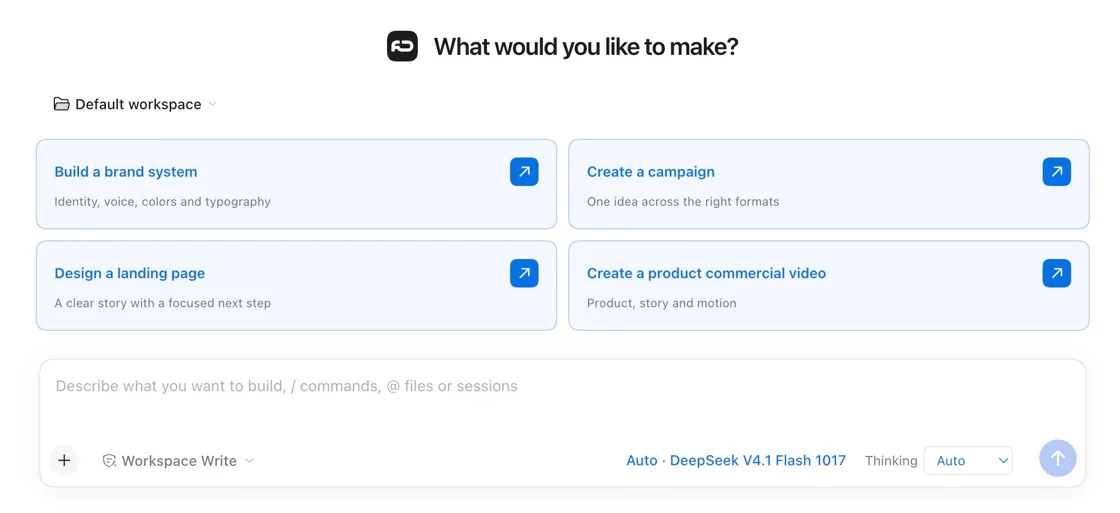
Open and hide the harness
- In the flowmo desktop app's top bar, select the sparkle control labelled Open harness.
- To hide the docked assistant, select the same control, now labelled Hide assistant. Select Open harness again to restore the view.
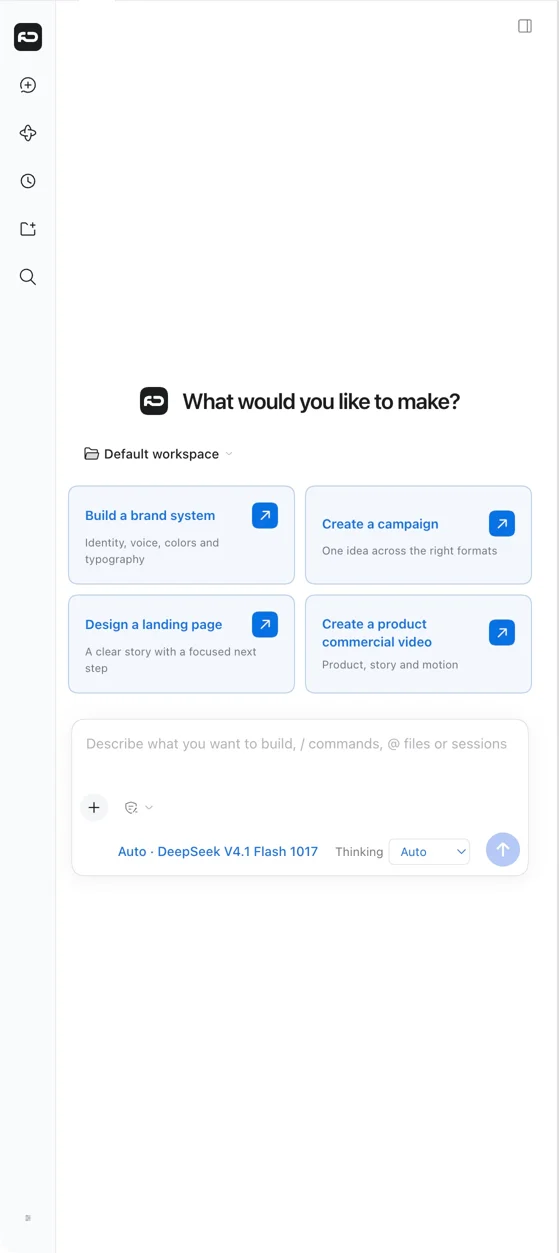
Choose a window layout
- Docked: The assistant appears beside flowmo. To expand it, select Full-width assistant in the top bar.
- Full-width: Select Dock assistant on the left to return to the side-by-side layout, or Back to flowmo to return to your projects.
- Separate window: Select Detach conversation. In the detached window, select Redock to return it to the main app, or Back to flowmo to bring the main app forward. To close the separate window, use its standard window close control. Closing the window is not an instruction to stop a running task; use the chat’s stop control if you intend to stop work.
Some earlier panels provide equivalent actions under Assistant options (···): Full harness workspace, Dock beside Flowmo, Open in separate window, and Return to workspace.
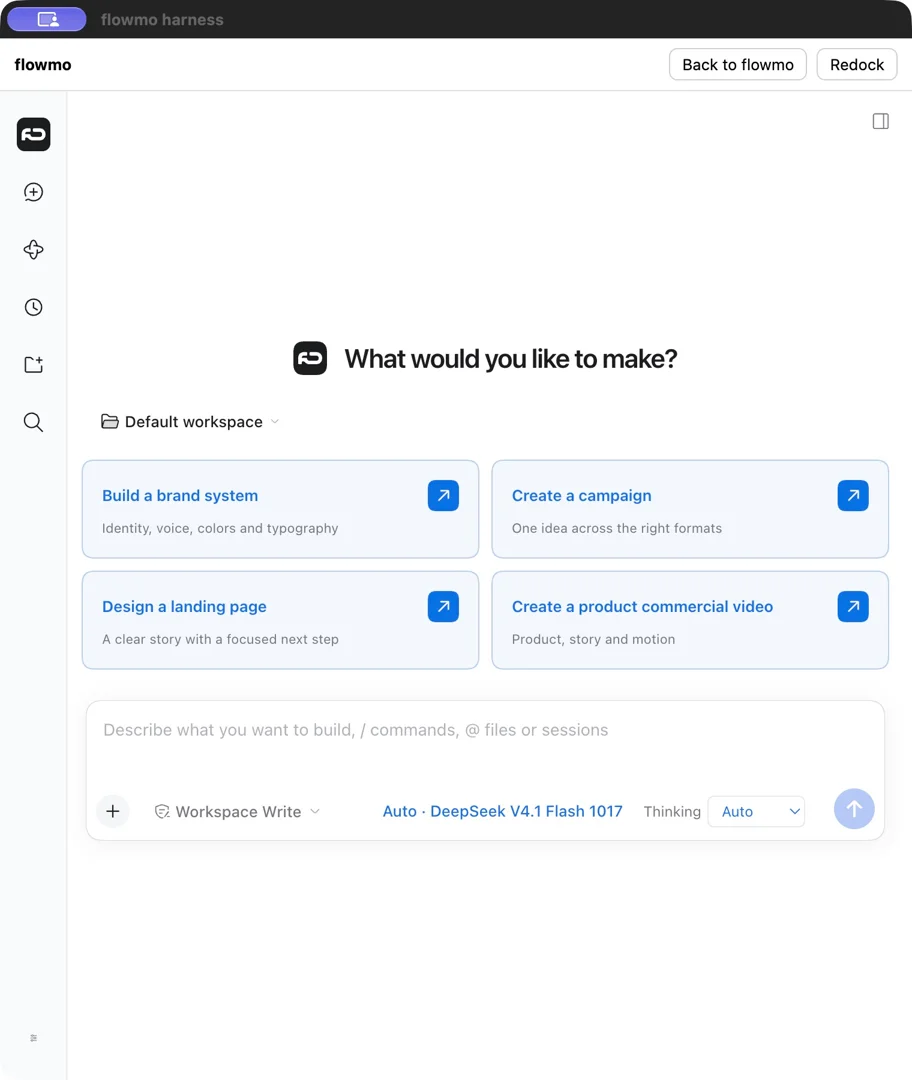
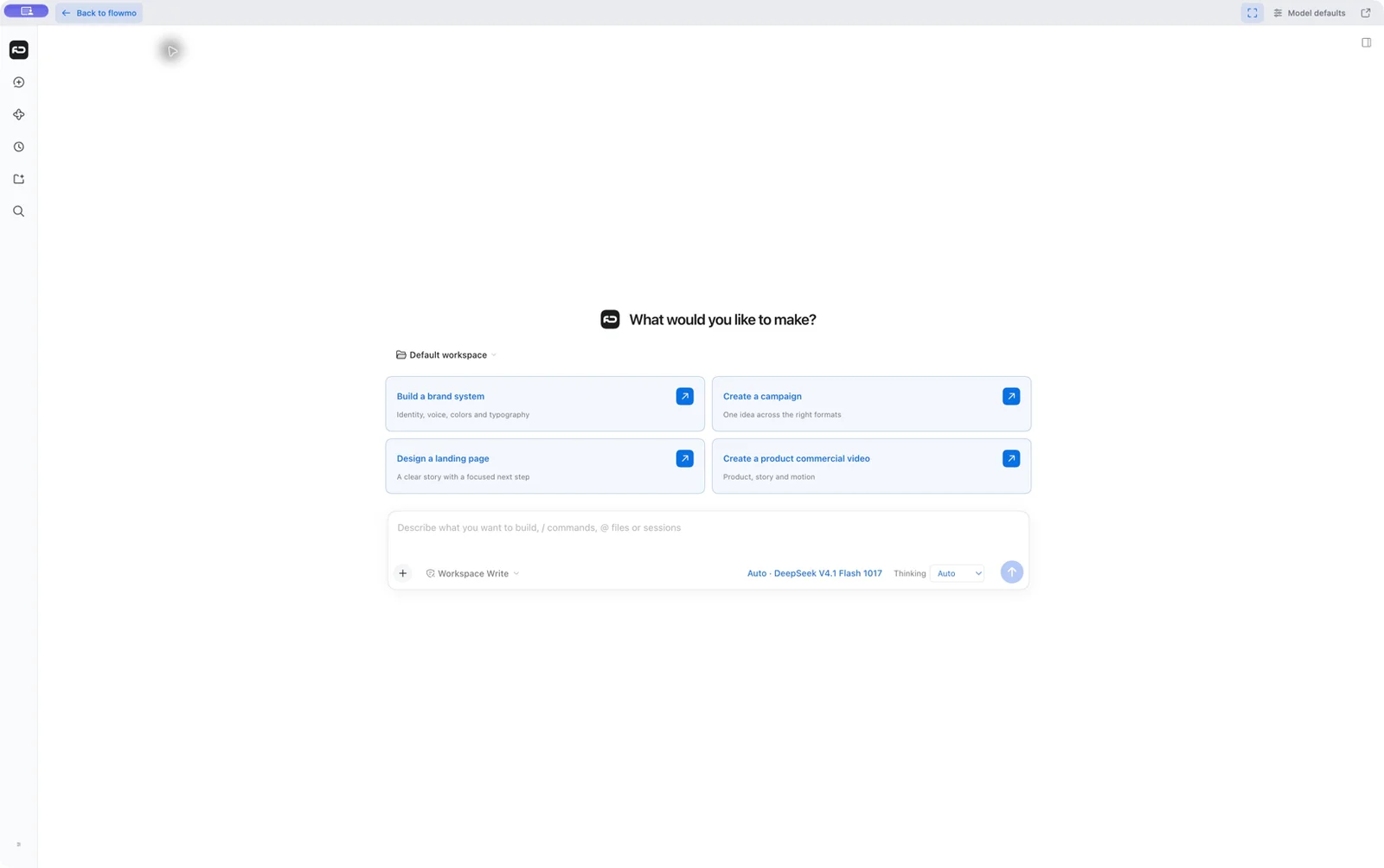
Access modes
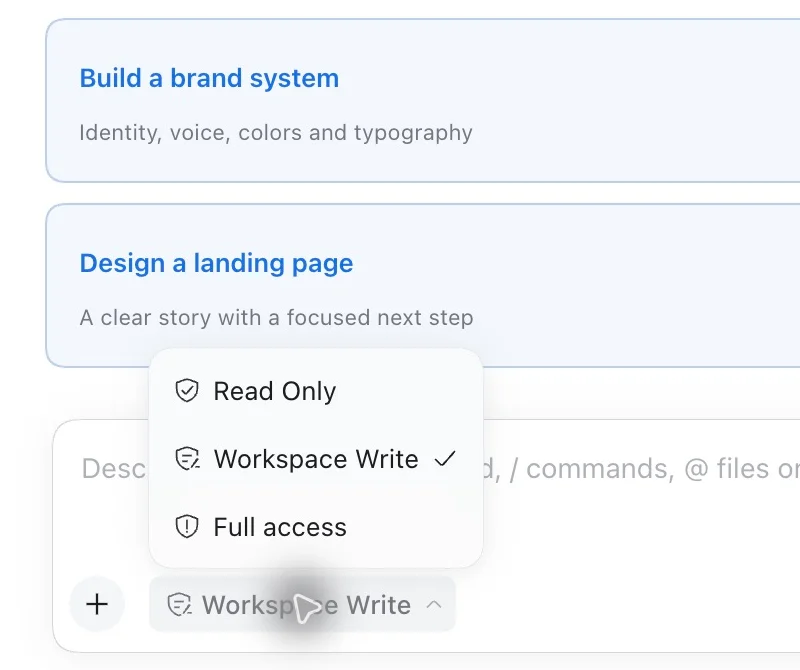
The access selector in the composer controls permissions separately from the window layout. Choose the level appropriate for your task and review prompts:
- Read Only: Operations governed by the file sandbox cannot modify files in this mode.
- Workspace Write: Sandbox-governed operations may modify files in the session workspace and some temporary areas.
- Full access: The file sandbox does not restrict file modifications, and confirmation steps are reduced. More direct sensitive actions, file changes, or external commands can be possible; use this mode only for work you trust.
These file-sandbox settings do not replace other tools’ or services’ permissions and approval checks. Opening, closing, or moving the window does not itself change the selected access mode.
Start a conversation
- In a new empty conversation, type your own request or choose Build a brand system, Create a campaign, Design a landing page, or Create a product commercial video. A starter fills the composer with a suggested request; review it and send when ready.
- Provide relevant sources and references. If the project offers Start with your brand, connect an existing Brand from the Brain, choose Create a brand first, or Skip for now. Review a prepared Brand draft before sending.
- Review the assistant's questions, permission requests, and any prices before authorizing work. Inspect resulting artifacts; use Full edit when available, and verify save and reopen before treating a change as durable.
- Use the conversation history to return to earlier work. If a handoff or operation has an uncertain outcome, inspect its current state before retrying.
Choose a model and Thinking level
Select the current model control to search or choose a reasoning model. Where the selected model exposes Thinking, choose a supported level. On the observed Auto model the menu offered Auto, off, low, medium, high and max; other models can offer different levels. Auto uses your saved Task models. Model changes apply to future turns, not an already-running turn. Task models & defaults opens the defaults when available.
Workspaces, sessions, costs, and limits
Choose New session to start another chat. Use Choose workspace to select a workspace; the starter can show Default workspace. Return to existing work using the sidebar workspaces and session rows, or Search sessions.
The assistant may use account credits for authorized work. An accepted Brand or draft is not authorization to publish. Browser or cloud harness access and an external MCP connection are separate from this desktop experience. For external hosts, see the separate MCP connection guide.
What was verified
Desktop version 2.2.20261029002 was observed opening its starter and empty composer and switching between the documented views, including Redock. No prompt was submitted in that check, so it does not establish a successful paid task or Brand-first handoff. Native capabilities also depend on the current project, permissions, editor readiness, and the tools actually available.