Beta notice: desktop capabilities depend on your installed build. The account-cloud chooser and URL were observed, but complete Claude Code/Codex authorization was not verified in this pass; browser Assistant chat is not certified. Check the connected server and permissions before editing.
Where: Desktop: project menu → Agent setup → Connect through MCP; browser account-cloud: dashboard account menu → Connect MCP
Before you start
- For desktop-local control, install and launch the flowmo desktop app and open the intended project.
- Install Claude Code, Codex, or another MCP client. The desktop one-click button currently writes supported Claude configurations.
- For the separate account-cloud connection, sign in to flowmo and use an MCP client that supports the server’s authentication.
Key ideas
- Desktop bridge: MCP control is provided by the desktop app. The installed app exposes its local automation server on port 17765; a development app uses 17766 so both can remain connected without crossing over.
- One-click registration: Connect automatically merge-writes only flowmo’s MCP entry into Claude Code and an installed Claude Desktop configuration, preserving other servers, and installs the bundled flowmo skills.
- Connection diagnostics: The setup screen checks that the exact bundled MCP entry starts, completes MCP initialization, authenticates to the desktop bridge, and reports open project tabs and ready tool surfaces. Startup/authentication success does not guarantee that a particular project editor is ready.
- Client settings are explicit: Choose Claude Desktop / Claude Code or Codex / other MCP harness. The dialog generates a setup message with this installation’s actual stdio command and token-file path. Claude setup can write supported Claude configuration; Codex uses the generated TOML entry in its own configuration.
- Local authentication: The bridge binds to 127.0.0.1 and requires the app-generated automation token. The registered entry pins the matching app URL and token file; the user does not paste a token into chat.
Steps
- Open the flowmo desktop app and the project you want the external AI to control.
- In a desktop build with Agent setup, open it from the project menu, choose Connect through MCP, and select Continue to open Connect an MCP client to Flowmo. Keep the desktop app and intended project open while the connection is in use.
- Claude Code: select Claude Desktop / Claude Code, choose Set up Claude (or Copy setup message, which also checks and saves the Claude settings), then restart Claude Code and verify its MCP connection.
- Codex: select Codex / other MCP harness, choose Copy setup message, and use its generated Codex TOML entry in ~/.codex/config.toml while preserving unrelated servers. Restart or reload Codex, then verify the configured MCP server.
- Read the diagnostic status. Startup and authentication should pass; open the intended project if no project tab is listed. Ready surfaces are reported separately from connection health.
- In the MCP host, call f0_health with probe:true and confirm the expected app, project tab, and required editor bridge before making changes.
- Use f0_catalog or f0_features to discover the relevant feature, then f0_list_tools for the target surface before invoking a tool.
Account-cloud MCP: dashboard connection
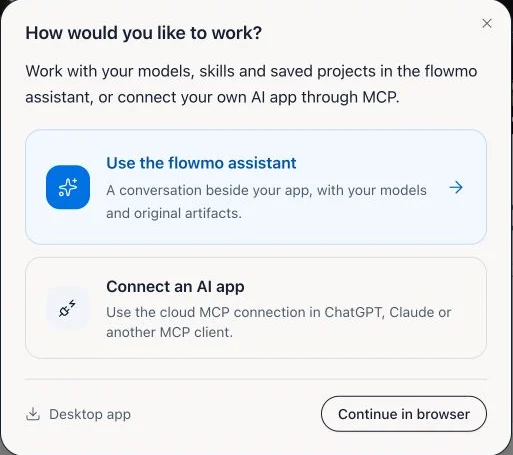
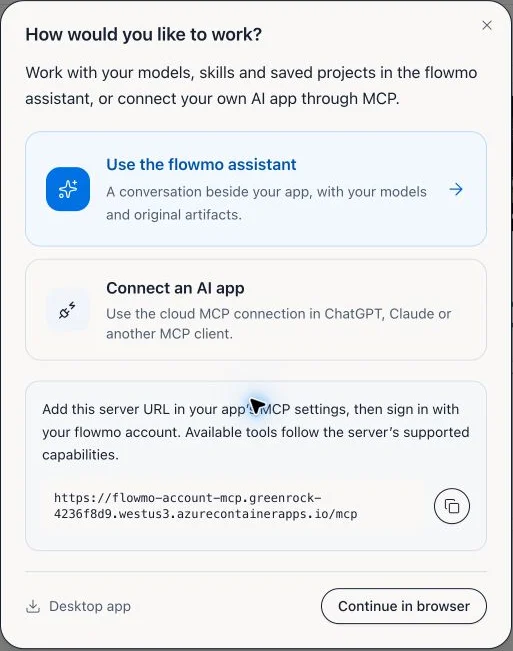
- On flowmo.ai/dashboard, open the account menu, choose Connect MCP, then choose Connect an AI app under How would you like to work?.
- Copy the server URL displayed by the chooser: https://flowmo-account-mcp.greenrock-4236f8d9.westus3.azurecontainerapps.io/mcp. Add it in your AI app’s MCP settings, then sign in with your flowmo account and review the requested permissions.
- Claude Code CLI syntax: claude mcp add --transport http flowmo-account https://flowmo-account-mcp.greenrock-4236f8d9.westus3.azurecontainerapps.io/mcp. Use claude mcp list and the client’s sign-in flow.
- Codex CLI syntax: codex mcp add flowmo-account --url https://flowmo-account-mcp.greenrock-4236f8d9.westus3.azurecontainerapps.io/mcp, then codex mcp login flowmo-account and codex mcp list.
- The chooser and URL were observed in an authenticated browser; these CLI commands were checked against local help, but account-cloud sign-in and a complete external-client connection were not tested in this pass. Supported tools and permissions come from the connected account server.
Verify each CLI client
- Claude Code: run claude mcp list after setup and restart. Use the exact generated f0 or f0-dev entry from the desktop dialog; do not install a placeholder npm package.
- Codex: after adding the dialog’s generated TOML and restarting/reloading Codex, run codex mcp list to verify the entry. The app-specific command, arguments, port, and token-file location come from the setup message, not a guessed path.
- A listed server is not proof that a particular project or editor is ready; use Test connection in flowmo and f0_health with probe:true.
Live and development connections
- f0: installed Flowmo app, port 17765, packaged app token directory.
- f0-dev: local development app, port 17766, development token directory.
- Each entry pins its own URL and token file; do not rename f0-dev to f0 or share its local token.
Diagnostic stages
- The diagnostic launches the exact configured server, initializes MCP, probes f0_health, and checks desktop-app authentication.
- After connection readiness, project tabs and editor bridge readiness are separate. An empty tab list means open a project; a specific false bridge means wait for or repair that editor rather than repeatedly retrying an edit.
- Long desktop calls may return state=running with an operationId; poll f0_operation for that same operation instead of repeating the mutation.
Desktop, browser, and cloud are different
The desktop dialog supplies an instance-specific local stdio server and private automation bridge. The localhost bridge is not an HTTP MCP endpoint. The account-cloud URL above is a different server and authorization path, not the older project-tab relay. Where the separate browser project-tab relay is used, it requires its own sign-in, project authorization, and the selected project tab to remain open. Do not assume one connection grants the others.
Manual clients and security
Use the exact client-specific settings displayed by Connect an MCP client. The message references the app’s local token file, not the token itself. Preserve other server entries and never paste a token into chat or commit it to a repository.
Limitations and important notes
- This desktop setup dialog is Electron-only; browser project connections use a separate authorization flow.
- The MCP client may need a restart or connection reload after registration.
- The dialog’s generated command is specific to the installed instance; do not use a placeholder package name or localhost bridge URL as a remote MCP endpoint.
Troubleshooting
The setup diagnostic times out or MCP cannot reach Flowmo
Keep the desktop app open, rerun the diagnostic, confirm that the entry targets 17765 for installed Flowmo or 17766 for development, and check for a local port conflict. Restart the client after changing settings.
The host controls the wrong app
Use the f0 versus f0-dev server explicitly. Re-run Connect automatically from the intended app so its entry is pinned to the correct URL and token file.
Startup succeeds but editing tools report the Designer is not ready
Connection health is not editor readiness. Open the intended project in the desktop app, wait for its relevant bridge to report ready in f0_health with probe:true, then inspect get_open_designer or get_open_node_editor as appropriate before invoking editor tools.
The connection reports an authentication error
Do not copy a token into the prompt. Refresh the connection from the app so the MCP entry uses the current local credential, then restart or reconnect the client and rerun the diagnostic.