Use the dashboard to choose a Flowgen workspace, organize projects, open Automations and shared libraries, manage account/marketplace surfaces, and recover a project before entering its canvas.
Where: flowmo dashboard — Sign in
Key ideas
- Workspace context: The organization, team, and folder selected in the left sidebar determine which projects and shared resources you are browsing.
- Project home: Search, filter, sort, create, open, duplicate, share, move, back up, restore, or delete project cards from one place.
- Account and shared surfaces: Fonts, Media, Presets, Automations, Marketplace, and Account settings live alongside projects because they can span more than one canvas.
Steps
- Select the correct organization/team and folder or pinned view.
- Search/filter the grid and open an existing Flowgen project, or create a separate Flowgen workspace only when needed.
- Use the project card menu for sharing, moving, download, restore, duplicate, or delete actions.
- Use dashboard-level libraries and account tabs for resources/settings that should span projects.
- Enter the Flowgen canvas to add nodes, ask Agent, or insert a Blueprint/Marketplace flow.
Dashboard map
- Workspace sidebar: organizations, teams, folders, Recent Projects, Shared with me.
- Projects: filters, search, sorting, grid/list, create and card actions.
- Shared libraries: Fonts, Media, and Presets.
- Operations: Automations and published apps.
- Commerce/identity: Marketplace, Purchases, Community Profile, Creator Studio.
- Account: plan, sites/hosting, usage, Powerups, preferences, security.
September dashboard and project-mode model
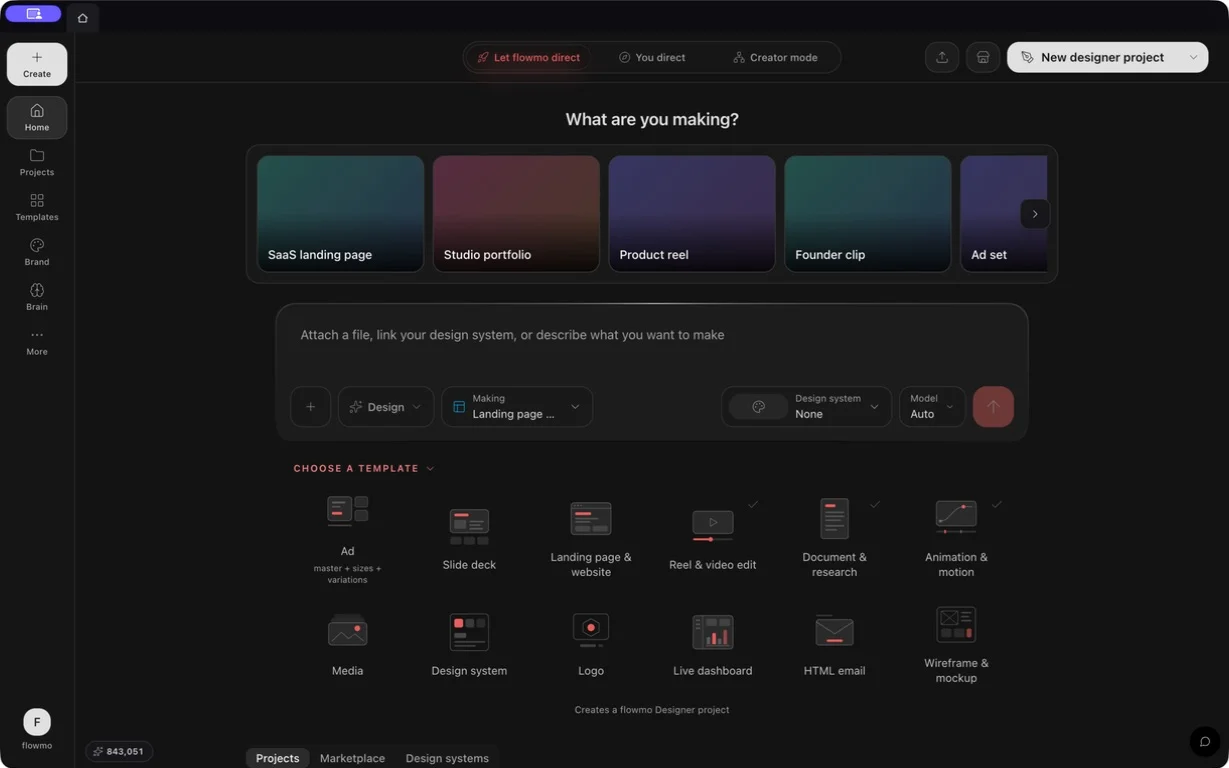
The dashboard has three distinct presentations: Let flowmo direct, You direct, and Creator mode (stored as autopilot, assist, and control). The account work mode seeds two separate user defaults—f0Chrome and flowgenChrome—while a surface-and-project-specific override can independently choose Focus/Studio or Cards/Node graph for one project.
- Let flowmo direct uses a sidebar-free Designer-first shell with a narrow desktop icon rail, unified prompt composer, clay type shelf, and Projects/Marketplace/Design systems tabs.
- You direct uses the standard sidebar, a centered three-way switch, eight violet outcome cards, and a search-first recent-project grid.
- Creator mode keeps the standard sidebar and complete folder, type-filter, search, sort, grid/list, archive, and trash controls.
- Resolution order is project override → user surface default → work-mode default. Choosing a work mode resets both user defaults; changing one editor default leaves the work mode and the other editor alone.
- A premium badge communicates a paid workflow; eligibility and Sparks are checked when an action actually spends.
Related guides
- Choose a project type: f0 Websites, f0 Video, Designer, or Flowgen
- Flowgen-first: canvas, flows, websites & videos
- Your first design
- Managing projects
- Workspaces: organizations, teams & folders
- Organize projects with folders, Recent, and Shared with me
- Account settings
- Back up and restore a project from the dashboard
- Dashboard work modes: Let flowmo direct, You direct, Creator mode, and project starts
- Dashboard interface: Let flowmo direct, You direct, and Creator mode layouts
- Editor view preferences: user defaults and per-project f0 and Flowgen overrides
- Designer projects, pages, promotion, and the Flowgen round trip