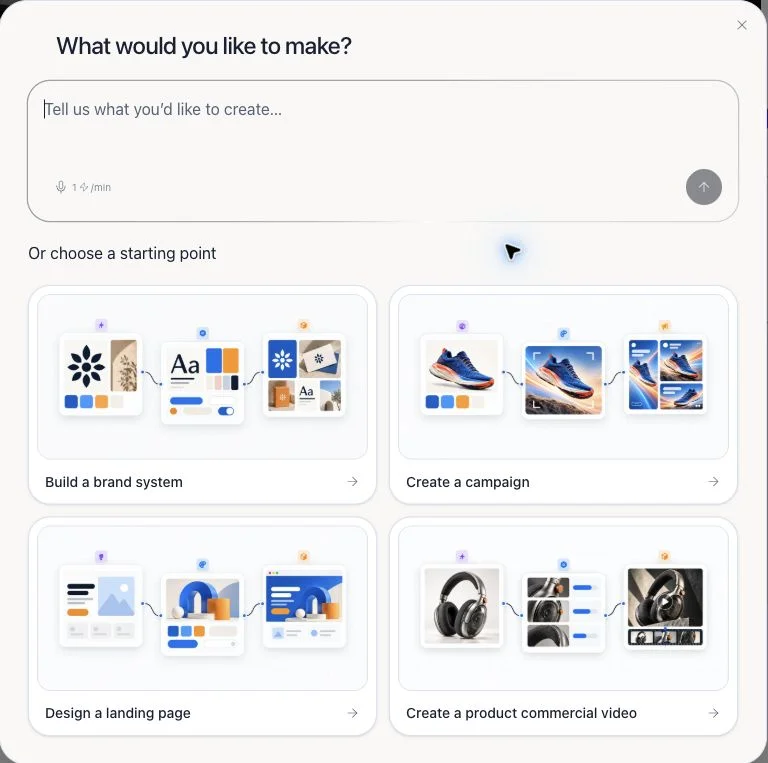
Start with your goal on the Dashboard, then continue in Flowgen with a guided Agent task or a blank canvas. Use chat, eight starting cards, or Marketplace—not a standalone-editor chooser.
Where: Dashboard → What would you like to make? → Describe what you have in mind.
Key ideas
- One normal starting path: The current onboarding begins with the Dashboard goal prompt and opens a Flowgen project. Website, video, Designer, and compositor editing can be stages inside that connected work.
- Brand is optional context: Attach references and create or connect a Brand when consistent identity matters; Skip for now is a valid choice.
- Flowgen has three entry choices: Build with AI through chat, choose one of eight starts on a truly empty canvas, or start from a Marketplace flow.
- Editors remain available inside work: Open an editor-backed node when you need hands-on control. You do not need to choose a standalone editor before describing your idea.
Steps
- On Dashboard, choose “Describe what you have in mind” below “What would you like to make?” and explain your intended result. The example ideas are suggestions, not separate products.
- In “Bring your idea to life,” attach only useful website, file, image, recording, or written context.
- Create a Brand, connect an existing Brand from Brain, or skip Brand for now. Verify the chosen references and fields.
- Review the guided Agent quote before Start creating. This creates a Flowgen project with a saved, paid Agent conversation; asset generation has separate quotes.
- If you prefer to direct the start yourself, create a blank Flowgen canvas and choose Build with AI, one of eight starting cards, or Start from a flow in Marketplace.
- In Flowgen, keep task-specific prompts in connected Text nodes and identity data in the linked Brand’s exact fields. Connect noodles to the named destination inputs.
- Use Card mode for a compact scan and graph mode to inspect noodles. Select nodes for complete card and sidebar options.
- Open Designer, website, video, or compositor editors through supported Flowgen nodes when direct editing is needed. Return to the canvas to verify outputs.
- Review any cost and result before a paid run, then choose share, export, staging preview, or publish only after checking the target.
Eight empty-canvas starts
- Slide deck
- Ad
- Brand images
- Immersive webpage
- Studio portraits
- Animation & motion
- Reel & video edit
- Design system
Guided or self-directed
- Dashboard goal prompt: complete a brief and optional Brand choice, then continue into a saved Flowgen Agent task.
- Blank Flowgen canvas: chat, eight starts, or Marketplace.
- Supported editor nodes keep visual work connected to the Flowgen graph.
- A separate standalone project is an advanced lifecycle choice, not the recommended first decision.
Tips
- Describe the result you want; Flowgen can add the right editor-backed stage later.
- Use a linked Brand field for reusable identity and connected Text inputs for task-specific wording.
Limitations and important notes
- The four Dashboard examples are suggestions, not four project types.
- The eight cards only appear on a truly empty Flowgen canvas.
- Sharing, exporting, publishing, and listing in Marketplace are separate actions.
Troubleshooting
I do not see the eight starting cards.
They appear only on an empty Flowgen canvas. Use Add, Agent, or Marketplace if the canvas already has nodes.