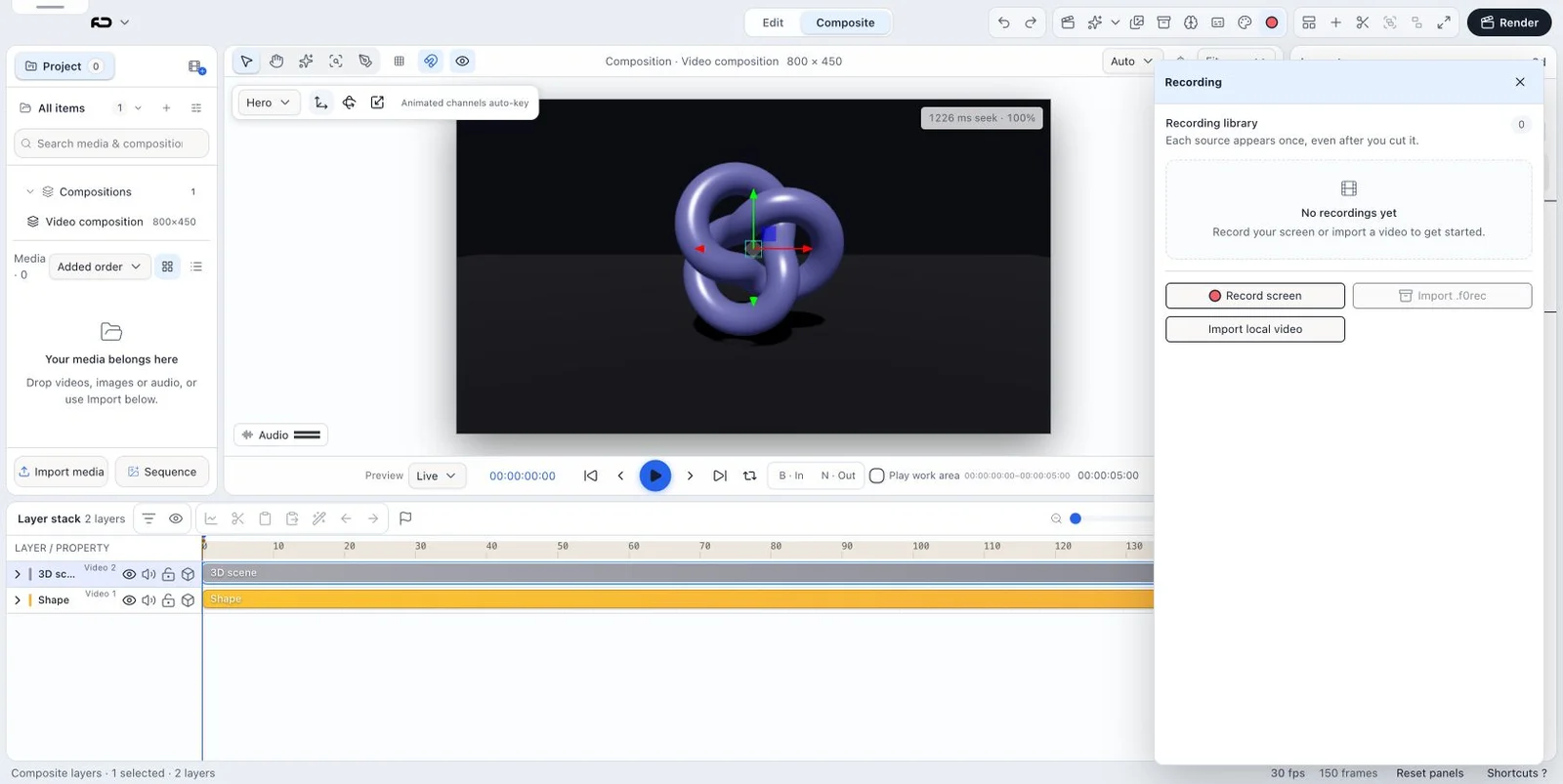
Capture or import a recording, edit its cuts and speed, direct automatic zoom and cursor motion, unlock for direct animation, and return the result to the composition.
Where: Native Video Editor → Recording; or select a recording layer → Recording.
Key ideas
- Recordings keep motion metadata: Browser capture, macOS .f0rec packages, and supported local video can open in the dedicated recording editor. Portable packages may carry cursor and click tracks; imported ordinary video may not.
- Cuts retime recording motion together: Trims, removed intervals, and speed changes remap the footage plus automatic zoom, cursor, and click events so effects do not persist through cuts or drift after retiming.
- Automatic and direct animation are exclusive: Automatic controls generate the guided camera/cursor result. Unlock animation pauses those controls and preserves direct compositor edits rather than letting two systems fight over the same values.
Steps
- Open Recording and choose Record screen, Import .f0rec, Import local video, or Edit on an existing recording.
- For capture, select a screen/window/tab in the browser or use the supported desktop recorder. Stop and wait for the recording to enter the workspace.
- Scrub the recording preview, use Cut at playhead, and drag trim handles so each kept segment starts and ends cleanly.
- Select a cut and choose 0.5×, 1×, 1.5×, 2×, or the speed slider. Play across the boundary to check the retimed cursor and audio.
- Set Fit recording or Fill canvas, choose Full/16:9/1:1/4:5 crop, margin, and output framing.
- Add Zoom here at the important moment. Choose Follow mouse or Fixed point, strength 1.1–4, Focused/Smooth behavior, and smoothness.
- Turn Cursor on when pointer storytelling matters; choose size, Studio/Dark Studio/Outline/Light/Dark/Dot style, and Smooth/Medium/Rapid/None movement.
- Choose click feedback None, Pulse, or Ripple and inspect several consecutive clicks and cut boundaries.
- Keep automatic motion for guided editing, or choose Unlock animation before hand-keying those properties in Composite.
- Return to the composition, play the complete edited range, and export a review file.
- Hover over a recording clip to preview its source frame before placing a cut.
- Drag a recording clip edge to ripple-trim the lane; the neighboring clip closes the gap so the recording sequence remains continuous.
- Change a clip’s speed after trimming; speed edits preserve the selected cut span rather than changing the cut’s source in/out points.
- Open the Recording Library to preview recordings and inspect duration, dimensions, cut count, and source; Edit opens the recording workspace, Rename changes its label, and Remove deletes its cuts from the project while retaining the source file/local recording.
- Merge a cut boundary to make neighboring segments continuous, and use the zoom visibility toggle or delete-all action when the recording’s automatic zoom track should be hidden or cleared.
- In the motion panel, tune cursor size/style and click presentation; use the scale option for cursor emphasis and verify it at playback size.
Trim and speed are separate edits
- Hover preview helps identify the frame at a clip edge before trimming.
- Edge-drag trims ripple the recording lane and keep adjacent recording segments gapless.
- Speed changes retime playback within the preserved cut span; review duration and cursor/zoom motion afterward.
- Merge cut boundary removes the edit between adjacent cuts while keeping their source sequence continuous.
Recording Library and motion overlays
- The per-project Recording Library shows preview, duration, dimensions, cut count, and source and provides Edit, Rename, and Remove actions.
- Remove clears that recording’s cuts from this project; it does not delete the original source/local recording file, and the project change can be undone.
- The recording workspace can show/hide its zoom track or remove all zoom events. Cursor/click appearance, including cursor scale, is configured separately from the recorded source.
Recording workspace controls
- Back; Undo/Redo; shortcut help
- Open .f0rec; New recording
- Preview/playhead and cut lane
- Cut at playhead; Remove clip; trim handles
- Per-cut speed presets and continuous slider
- Output zoom lane and automatic/unlocked animation
Recording shortcuts
- Space — play/pause
- Left/Right — one frame; Shift for a larger step
- C — cut
- Delete/Backspace — remove selected cut
- Cmd/Ctrl+Z and redo
- Cmd/Ctrl+/ — shortcuts
- Esc — close transient UI/back
Tips
- Use Fill canvas for presentation-style crops and Fit recording when preserving the entire captured UI matters.
- Place zoom points on semantic actions—opening a menu, choosing a control, confirming a result—not every click.
Limitations and important notes
- Browser and OS capture permissions apply.
- .f0rec import currently requires the macOS desktop recorder path; Windows portable recordings can carry mouse tracks but use their supported package path.
- An ordinary local video cannot invent cursor/click telemetry that was never recorded.
Troubleshooting
Click waves remain visible after a cut.
Reopen the current build and verify the click belongs to a kept interval; recent builds explicitly remove cut-away click persistence.
Automatic zoom controls no longer change the result.
Animation is unlocked. Re-enable the automatic workflow or continue with direct Composite keys; do not mix both drivers.
Cursor motion feels delayed after changing speed.
Play from before the cut and confirm the current build; cursor/zoom tracks are retimed with recording cuts and playback rate.