Open the native editor, understand its project/viewer/Inspector/timeline layout, choose the correct workspace, and complete a first reversible edit and render.
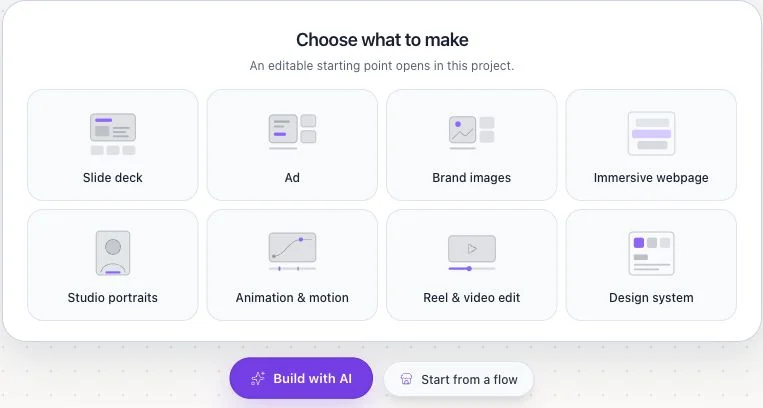
Where: Flowgen → empty canvas → Animation & motion or Reel & video edit; or Add → Video → Essentials → Video Editor.
Key ideas
- Video work starts in Flowgen: On an empty Flowgen canvas, Animation & motion and Reel & video edit each insert a native Video Editor node and open its compositor. Their example brief appears as an editable draft in the AI rail; choosing a card does not submit an AI turn. You can also add Video Editor from Video → Essentials and open it from the node.
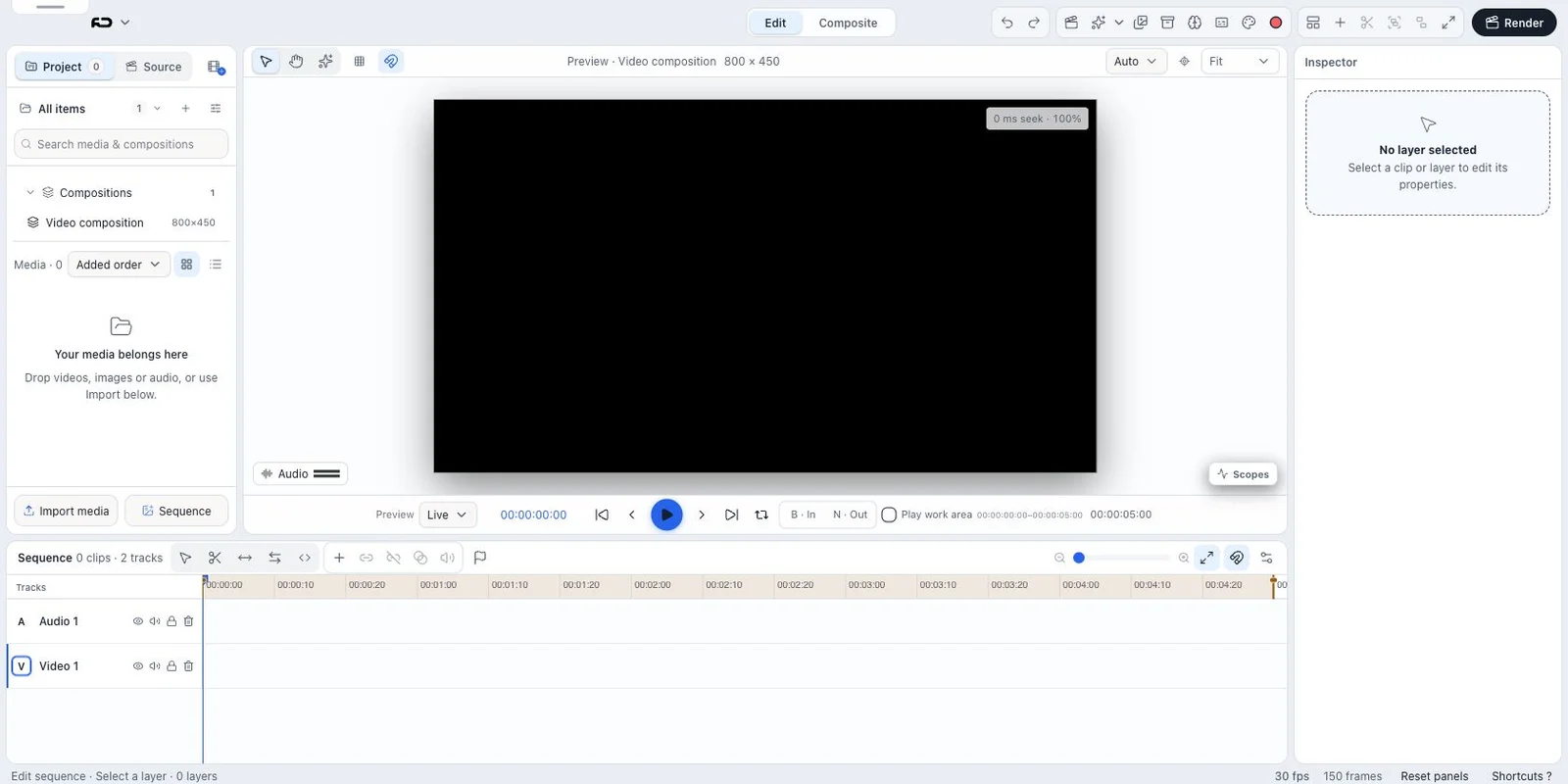
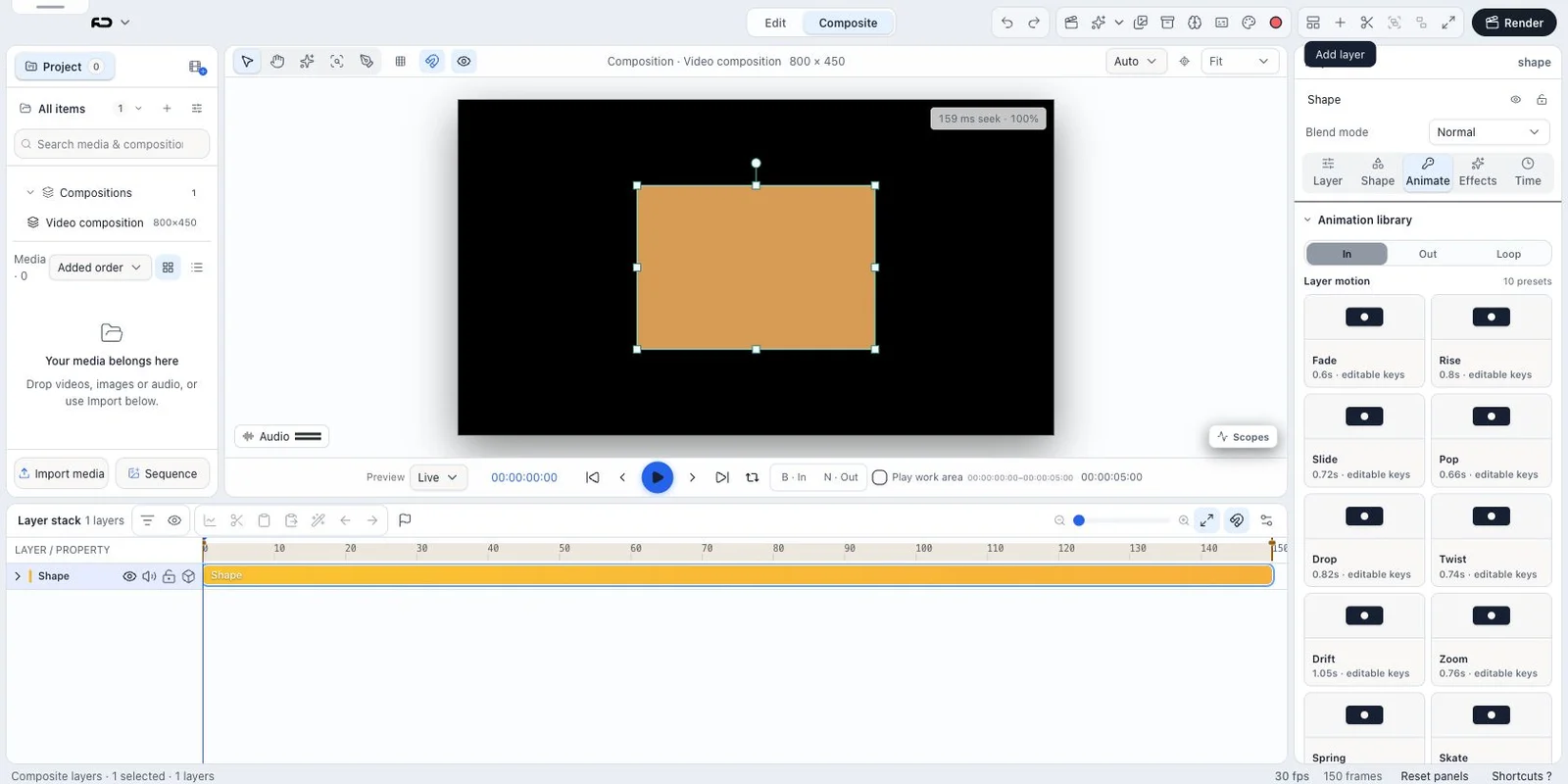
- One document, two workspaces: Edit is the NLE workspace for clips, sound, tracks, cuts, trims, and transitions. Composite is the layer-and-motion workspace for transforms, masks, effects, keyframes, graph editing, typography, shapes, and 3D.
- Four working regions: Project media sits left, the composition viewer and transport sit in the center, Inspector sits right, and the mode-specific timeline fills the bottom. View can toggle the panels or maximize the viewer.
- Compositions are reusable timelines: A project may contain several compositions. Opening one creates a tab; placing one inside another makes a precomposition whose source can be shared or duplicated independently.
Steps
- Open Flowgen and choose Animation & motion or Reel & video edit on a truly empty canvas. This creates a Video Editor node in the same flow and opens the native compositor; its example AI brief is a draft you can revise or leave unsent. For a flow that already has nodes, use Add → Video → Essentials → Video Editor, then choose Open Video Editor on its card.
- Wait for the composition viewer, Project panel, Inspector, and timeline to appear.
- Use the toolbar switch to choose Edit for clip assembly or Composite for visual-layer authoring. Switching does not create a second document.
- Import footage from Project, or use Media/Assets/Recording in Project tools. Open a source in the Source monitor before placing only a selected range.
- Place a clip at the playhead, choose its target track, then make one cut or trim in Edit.
- Switch to Composite, select the same visual layer, and change a transform or add editable keyframes.
- Use Undo/Redo and confirm the viewer, Inspector, and timeline all return to the prior state.
- Open View to show/hide Project media, Inspector, or Timeline, or maximize and restore the viewer.
- Open Render, choose a format and Full composition or Work area, then inspect the rendered result.
Toolbar map
- Composition tabs and current composition path
- Edit / Composite workspace switch
- Undo and Redo
- Add text, shape, solid, or 3D scene from layer actions
- Group, precompose, arrange, composition settings, View, Help, and Render
Useful global shortcuts
- Space — play/pause; hold Space while dragging — pan
- Cmd/Ctrl+Z and Shift+Cmd/Ctrl+Z — undo/redo
- Cmd/Ctrl+S — save portable JSON
- Cmd/Ctrl+Shift+F — fit composition
- Cmd/Ctrl+Shift+X — maximize/restore viewer
- Cmd/Ctrl+/ — shortcut reference
Tips
- Assemble timing in Edit before polishing visual properties in Composite.
- Use the searchable Shortcuts dialog because several keys intentionally change meaning by workspace.
Limitations and important notes
- A Flowgen Video Editor is a same-window native surface, not an iframe document editor.
- Composition settings change the timeline contract; they do not automatically reframe existing layers.
- A successful render does not prove rhythm, audio sync, or every frame is correct—play the file.
Troubleshooting
A keyboard command performs the wrong action.
Check whether Edit or Composite is active. For example, Cmd/Ctrl+K adds an edit in Edit but opens composition settings in Composite.
A panel disappeared.
Open View and re-enable Project media, Inspector, or Timeline, or choose Reset layout.
Related guides
- Video Editor project media, source ranges, bins, and compositions
- Video Editor Edit workspace: tracks, cuts, trims, transitions, and retiming
- Video Editor Composite workspace: layers, keyframes, graphs, precomps, and motion presets
- Video Editor Render: video, image sequences, portable projects, and Flowgen delivery