Render video, a video frame sequence, a WAV mixdown, or a portable project; choose the available destination and distinguish direct rendering from Flowgen Video Render.
Where: Native Video Editor → Render; or connect Editable Composition to Flowgen Video Render.
Key ideas
- Direct Render and the Render node are related paths: The editor renders its open composition to a download or, when project asset saving is available, back into Project assets. Flowgen Video Render accepts an editable native composition for connected flow delivery; its settings and target labels are not identical to the editor popover.
- Composition finishing travels with the document: Caption layers and motion blur belong to the native composition and follow every target. Native-composition renders intentionally do not offer conflicting encoder-side caption or motion-blur overrides.
- Portable project is editable state, not media: The Portable project option saves native structure for reopening. MP4/WebM are playable video; WAV is an audio-only mixdown; PNG and WebP sequences are ZIPs of ordered frames or project assets.
Steps
- Set and play the work area if only a bounded range should be delivered; otherwise confirm the full composition duration.
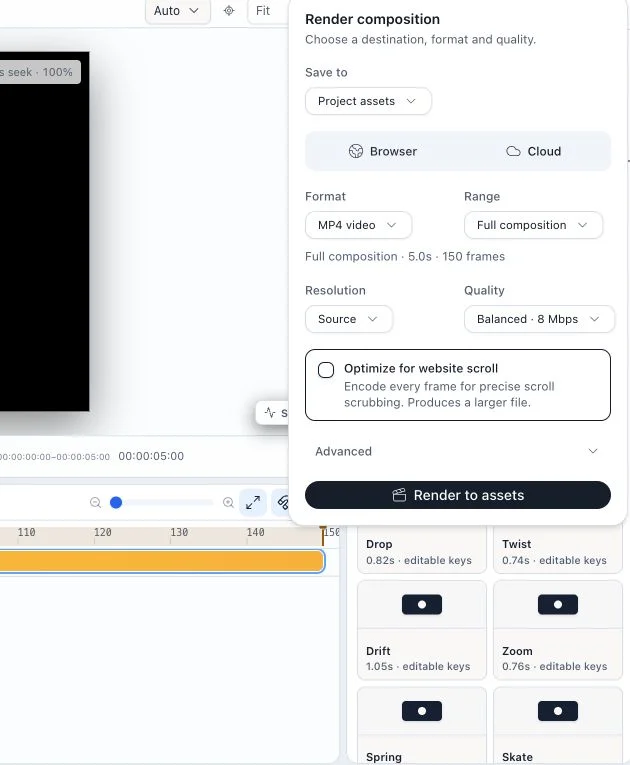
- Open Render. Under Save to, choose Download file or Project assets; the latter is disabled until the host can save assets for this project.
- Choose MP4 video, WebM video, WAV audio, PNG sequence, WebP sequence, or Portable project. For video/image sequences, choose Full composition or Work area (B–N); WAV exports the composition audio mix.
- Choose Browser, Desktop when the native app is available, or Cloud for video renders after the project is saved and a worker is configured. WAV is rendered in the browser or saved to project assets; it has no Desktop/Cloud target.
- Choose Source, Up to 1080p, Up to 720p, or Custom resolution and Draft, Balanced, High, or Custom quality where shown. Advanced exposes frame rate, custom dimensions, video bitrate, audio/gain, Desktop encoding, and WebP image quality as applicable.
- For a video used in scroll scrubbing, enable Optimize for website scroll only when precise seeking is needed; encoding every frame creates a larger file.
- Click Render file or Render to assets; Portable project instead uses Export portable project. Inspect the result in the download or Project assets.
- For delivery inside Flowgen, connect composition_out to Video Render composition_in. Its node card/sidebar has a separate Browser/Electron/Cloud target and its own FPS, resolution, quality, and size-estimate controls.
- Edit native caption layers and motion-blur settings in Video Editor; clear incompatible legacy encoder overrides when the Flowgen Render card offers that repair.
- Play the rendered output to check duration, frame rate, precomps, effects, audio, captions, and motion. Reopen a portable project to verify editability.
Native compositor recovery snapshots
- The native Video Editor project menu also offers manual Save Backup and Restore Backup; automatic backups run on a dirty-gated cadence while an editable leader session is open.
- Restore first writes a Before restore snapshot of the current document and refuses to proceed if that safety snapshot cannot be saved.
- These project backups are separate from portable JSON export and from Dashboard/legacy editor backup systems. See the dedicated project-backup guide.
Direct editor Render controls
- Save to: Download file or Project assets (when available)
- Formats: MP4 video, WebM video, WAV audio, PNG sequence, WebP sequence, Portable project
- WAV: compositor mixdown to stereo 48 kHz 16-bit PCM; Browser download or Project assets, without Desktop/Cloud target selection
- Range: Full composition or Work area (B–N) for video/image sequence renders
- Resolution: Source, Up to 1080p, Up to 720p, Custom
- Quality: Draft, Balanced, High, Custom where applicable
- Advanced: frame rate, custom width/height, bitrate, audio/gain, Desktop encoding, WebP image quality
- Optimize for website scroll: video only; all-intra encoding for precise scrubbing with a larger file
Direct editor render locations
- Browser — available for supported native compositions
- Desktop — shown when the native desktop compositor is available
- Cloud — requires a saved project/asset destination and configured worker
- Unavailable runtimes are not silently substituted
Flowgen native render settings
- MP4 (H.264) or WebM (VP9)
- 24, 25, 30, 50, or 60 FPS from the shared card/sidebar UI
- Source, 480p, 720p, 1080p, 1440p, 4K, or Custom resolution
- Estimated output dimensions/size
- Include audio and gain where supported
- Scrub optimization; native captions/motion blur remain composition-owned
Tips
- Use Work area for review renders and Full composition for final delivery.
- Export a portable project before risky interchange or large revisions, and keep project backups separate from encoded outputs.
Limitations and important notes
- Desktop is shown only when its native runtime is available; Cloud requires a saved project and configured worker.
- PNG/WebP sequences and portable projects are not playable video files.
- Browser file saving and long renders depend on browser capabilities and available storage.
- Native compositor targets intentionally ignore incompatible legacy encoder overrides.
Troubleshooting
Project assets or Cloud is disabled.
Save the project first and verify the host supports project asset saving; Cloud additionally needs its render worker configured.
Desktop is absent.
Open the native desktop app or choose Browser. The Desktop choice is hidden when that runtime is unavailable.
The rendered file differs from the canvas.
Confirm the selected composition/range/target and inspect precomps, source relinks, font embedding, effect support, and native caption/motion-blur settings.
An old Render node shows incompatible overrides.
Use Clear incompatible export overrides and author those finishing choices in Video Editor.