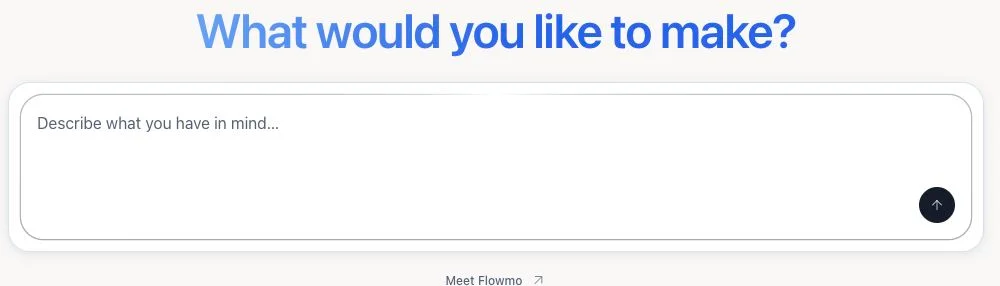
Start with the Dashboard’s “What would you like to make?” prompt. The guided brief opens Flowgen; a new Flowgen canvas also offers chat, eight visual starting choices, and Marketplace flows.
Where: Dashboard → “What would you like to make?” → “Describe what you have in mind…”
Key ideas
- One guided entry: The Dashboard asks what you want to make. Describe the outcome and add useful references; you do not need to choose a project type, editor, model, or account mode before stating your goal.
- Three ways into a Flowgen flow: After entering Flowgen, use Build with AI for a conversation, choose one of the eight visual starts shown on an empty canvas, or open Start from a flow to browse Marketplace work. All three build within Flowgen.
- Brand is optional: The guided brief can connect an existing Brain Brand, create one, or skip it for now. Add only relevant files, a website, images, or written context; the work can continue without a complete brief.
- Editor views are later choices: Website, video, and Designer editing surfaces can open from suitable Flowgen nodes. Focus/Studio and Card/graph settings affect how an existing project is presented, not where a novice must start.
Steps
- On the Dashboard, open “Describe what you have in mind…” under “What would you like to make?” State the result you want in ordinary language.
- Add a website, files, images, or short notes if they matter. Choose Create, Connect, or Skip for a Brain Brand; you can link one later.
- Start creating to open the Flowgen project and its saved Agent conversation. Check the brief and the first question or plan before asking it to build.
- To start directly on a blank canvas, use New flowgen project. Choose Build with AI for chat, one of the eight “Choose what to make” cards for an editable preset, or Start from a flow for Marketplace work.
- Review the resulting nodes and connections. Open the website, video, or Designer editor from its node when you need direct visual control.
- Read the displayed Flowie price before selecting Start creating: the guided handoff begins a paid Agent conversation. Asset generation has its own quote; placing a preset or Marketplace flow does not itself run its paid nodes.
Eight empty-canvas starts
- Slide deck
- Ad
- Brand images
- Immersive webpage
- Studio portraits
- Animation & motion
- Reel & video edit
- Design system
What carries into the project
- The guided request and relevant source notes or uploaded references.
- The selected or skipped Brand choice.
- A saved Agent task that can be reopened with the Flowgen project.
- A preset or Marketplace flow remains editable as nodes on the canvas.
Later project controls
- Use the sidebar, search, filters, and project cards to find, share, organize, or restore work.
- Use project view settings to switch Flowgen Card/graph presentation; editor surface settings are separate.
- The New project chevron still offers direct standalone project types for specialized or existing work, but it is not required for a first creation.
Tips
- If the goal is clear but the workflow is not, begin with the Dashboard prompt and let the Agent ask for missing details.
- Use the eight cards when one matches the deliverable; use Marketplace when an existing flow already solves most of the job.
Limitations and important notes
- A premium card can still require a plan or Flowies when its paid operation runs.
- A Marketplace listing can be unavailable to an account or require purchase before use.
- Changing the canvas view does not convert the document or create another project.
Troubleshooting
I cannot find the eight choices.
Open a new, empty Flowgen canvas. The choices appear there; an existing canvas with nodes keeps its work instead.
I started without a Brand.
Continue with the brief, then connect a compatible Brand record or field when you need reusable identity context.