Use the guided creation prompt, start a Flowgen project in Flow or Designer presentation, then find projects and shared resources in the Dashboard.
Where: Sign in → Dashboard; on first use, the welcome can open the same guided start.
Key ideas
- Creation starts with a goal: “What would you like to make?” opens the guided brief. It accepts a short request and optional references, then opens a Flowgen project. The Dashboard does not require a work-mode or project-type decision first.
- A blank Flowgen is another start: New flowgen project opens an empty canvas. There you can chat with the Agent, choose one of eight visual starts, or open a Marketplace flow.
- One project library, filtered: Projects lists the full scoped library as one grid or list. Search, project-type filters, sort, and the current organization/team/folder scope narrow it.
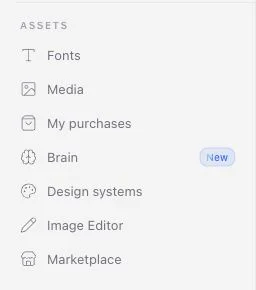
- Shared resources have their own places: Brain holds reusable structured records; Assets/Media holds uploaded media. Marketplace offers reusable flows and other listings. The corresponding Flowgen panels are scoped to the open project.
Steps
- Use the Dashboard “What would you like to make?” prompt to begin a brief, or create a blank Flowgen project when you want to choose the canvas entry yourself.
- On a blank Flowgen canvas, choose Build with AI, one of eight visual starts, or a Marketplace flow.
- Choose New Project → Designer only to create a Flowgen project that opens in Designer presentation; it remains under the Flowgen project filter.
- Use the New Project chevron for direct blank Website or Video projects when those editor-only starts are specifically needed.
Project navigation
- Projects lists the full library for the current scope; search, type filters, most recent/name sort, grid/list, and the organization/team/folder scope narrow it.
- Cards carry their own relative date; there is no separate recent shelf.
- Archive and Trash are separate scopes with different available card actions.
Shared destinations
- Brain: reusable Brand and other structured records.
- Assets/Media: workspace uploads and organization.
- Marketplace: browse reusable work; Flowgen also offers Start from a flow inside an empty canvas.
- Account settings: plan, usage, security, and preferences.
Brain, Assets, and the project list
- Projects lists the full library for the current scope; search, the type pills, sort, and grid/list narrow it.
- Brain is a dedicated browser room for reusable records. The Flowgen Brain panel is a separate project-local surface.
- Dashboard Assets/Media opens the workspace Asset Browser; it does not replace a Flowgen canvas Library or a node’s typed asset input.
Designer is a Flowgen start, not another project type
- New Project → Designer creates a Flowgen project and opens its Designer canvas presentation.
- New Flowgen opens the same project model in Flow presentation; switch views on the canvas as needed.
- The graph and connected sources remain the same when presentation changes.
- The legacy Designer filter can still locate older standalone Designer projects; new Flowgen Designer-mode projects remain under Flowgen.
Creation row
- The guided prompt starts a brief that opens in Flowgen.
- New Flowgen project opens a blank canvas; choose Build with AI, one of eight visual starts, or a Marketplace flow there.
- Import restores a supported project file; Marketplace opens listings.
- The New Project chevron provides specialized blank Website and Video projects. Designer opens a Flowgen canvas in Designer presentation, not a separate new Designer project type.
Tips
- Use the guided prompt when you know the outcome but not the nodes; use the empty-canvas cards when a named deliverable fits.
- Search the project library if an item is not on the first page of Projects.
Limitations and important notes
- The first-use welcome may appear only on an empty account and can be dismissed; the guided Dashboard prompt remains available.
- Plan and Flowie gates are checked when a paid action runs.
- Project-type filters describe stored projects; they are not a required creation choice.
Troubleshooting
I cannot find the eight creation choices on the Dashboard.
Create a new Flowgen project. The choices appear on its empty canvas with Build with AI and Start from a flow.
A project is missing from Projects.
Check the search field, the folder/team scope, the project-type filter, the sort order, and then Archive or Trash.
Related guides
- Start from the Dashboard: describe your goal, open Flowgen, or use Marketplace
- Start from a visual choice or Marketplace flow in Flowgen
- Flowgen-first: canvas, flows, websites & videos
- Managing projects in the Dashboard
- Dashboard Brain and Assets: browse reusable knowledge and media
- Your first Flowgen task: brief, references, and optional Brand
- Discover Marketplace items from Dashboard and Flowgen
- Three ways to start in Flowgen: chat, eight starts, or Marketplace
- Designer mode: the Flowgen canvas, typed documents, and legacy projects
- Getting started with Designer mode in Flowgen